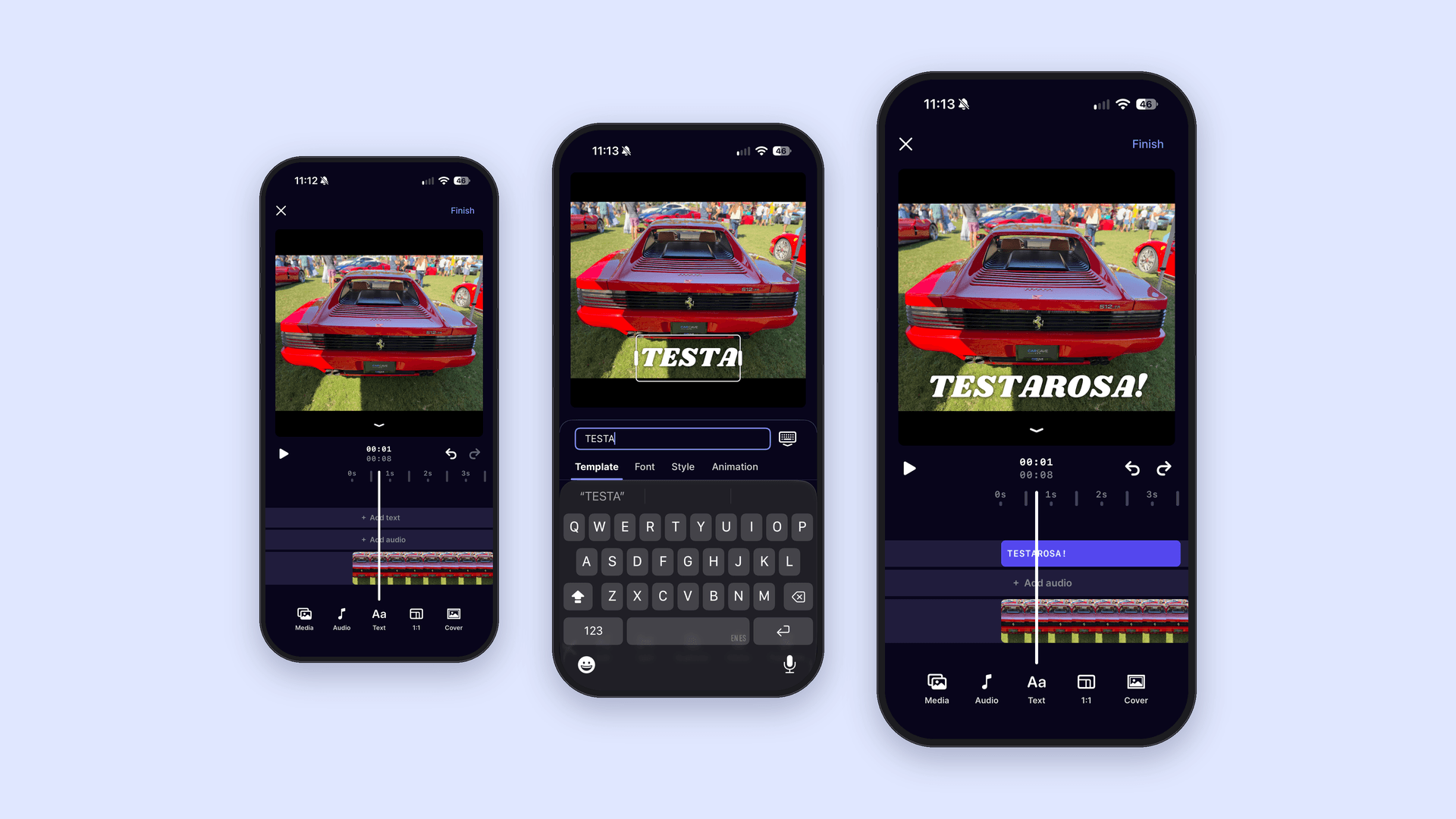
Text Overlays in Creator Studio let you add text to your photos and videos, customize its appearance, and apply animations to make your content more engaging.
How to Access Creator Studio
- Open the Truth Social app.
- Tap the Compose button to create a new Truth.
- In the Truth Composer, tap the Creator Studio icon.
- Select one of the following options: • Camera: Capture new media using your device's camera. • Media Gallery: Select an existing photo or video from your device.
- After selecting or capturing your media, Creator Studio will open, allowing you to edit your content.
How to Add a Text Overlay
- In Creator Studio, select the Text tool.
- Enter your desired text in the text field.
- Your text will appear in the media preview.
- Customize your text using the Template, Font, Style, and Animation tabs.
- Position the text where you want it to appear.
- Tap the checkmark to confirm your changes.
Choose a Text Template
Creator Studio offers a variety of ready-to-use text templates.
- Select your text overlay.
- Open the Template tab.
- Browse categories such as Titles, Hooks, Kinetic, Labels, Cinematic, Retro, and more.
- Tap a template to apply it to your text.
Change the Font
Customize your text with different font options.
- Select your text overlay.
- Open the Font tab.
- Browse available fonts or filter them by categories such as Sans, Serif, Script, Handwritten, Mono, and more.
- Tap a font to apply it.
Customize Text Style
Use the Style tab to personalize the appearance of your text. Available options include:
• Text: Change the text color. • Stroke: Customize the text outline. • Background: Adjust the background behind your text. • Shadow: Add shadow effects. • Weight: Adjust text thickness. • Case: Change capitalization. • Spacing: Adjust spacing within your text. • Size: Increase or decrease the text size. • Opacity: Adjust text transparency.
To apply changes, select the desired setting and use the available colors or adjustment controls.
Add Text Animations
Bring your text to life with animation effects.
- Select your text overlay.
- Open the Animation tab.
- Choose an animation category: • In: Controls how text appears. • Out: Controls how text disappears. • Loop: Applies repeating animation effects. • Sequence: Offers additional animation sequences.
- Adjust the animation duration using the Duration control, when available.
- Preview the animation and confirm your selection.
Adjust Text Position
- Select the text overlay in the media preview.
- Drag the text to your preferred position.
- Adjust its placement to avoid covering important parts of your content.
- Confirm your changes when finished.
Add Text in Different Languages
Creator Studio supports multilingual text overlays, allowing you to add text in different languages to your photos and videos.
- Select the Text tool.
- Switch to your preferred keyboard language.
- Enter your text in the text field.
- Customize its appearance using the available fonts, styles, and templates.
- Preview your text and confirm your changes.
*Note: Text appearance may vary depending on the selected font and language.*
Tips for Creating Effective Text Overlays
• Keep text short and easy to read. • Use contrasting colors to improve visibility. • Choose fonts and templates that complement your content. • Experiment with animations to highlight important messages. • Preview your text overlays before finalizing your edits.
FAQs
1. Can I add text overlays to both photos and videos? Yes. Creator Studio allows you to add and customize text overlays on both photos and videos.
2. Can I change the font and color of my text? Yes. Use the Font tab to select a font and the Style tab to customize the text color, size, opacity, and other appearance settings.
3. Can I animate my text overlays? Yes. Creator Studio offers a variety of text animations. Open the Animation tab to explore available effects and customize how your text appears, disappears, or moves.
4. Can I adjust how long a text animation lasts? Yes. Use the Duration control, when available, to adjust the length of your selected animation.
5. Can I use different languages in my text overlays? Yes. Creator Studio supports multilingual text. Switch to your preferred keyboard language and enter your text. The appearance of certain characters may vary depending on the selected font.
6. Can I move my text to a different position? Yes. Select the text overlay and drag it to your preferred location in the media preview.
7. Can I edit my text after adding it? Yes. Select the text overlay to update its content, font, style, or animation before finalizing your edits.
8. How can I make my text easier to read? Choose a font and color that contrast with your media background. You can also adjust the text size, add a background or outline, and modify the opacity using the Style tab.