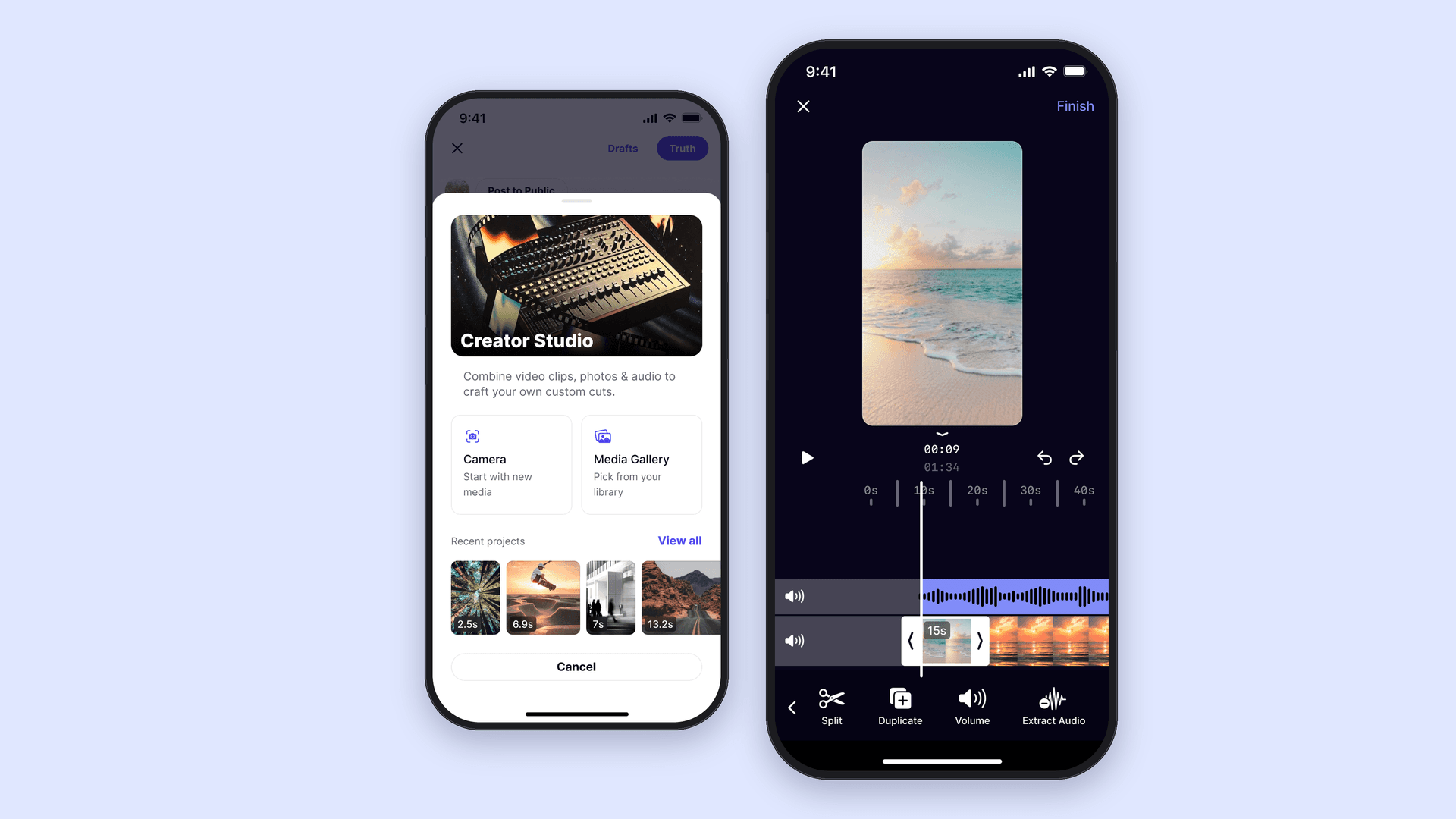
Creator Studio lets you combine video clips, photos, and audio to create and edit custom content directly within Truth Social.
How It Works
- Open the Truth Composer and select Creator Studio.
- Choose Camera to take a photo or record a video, or select Media Gallery to choose existing photos or videos from your device.
- Once your media is selected, use the editing tools to customize your content.
- Preview your changes and make any necessary adjustments.
- Tap Finish to return to the Truth Composer with your edited content.
- When you're ready, publish your Truth.
Editing Your Content
Creator Studio provides several tools to help you customize your content:
- Timeline: View and select clips for editing.
- Split: Divide video or audio clips into separate segments for more precise editing.
- Duplicate: Create a copy of a selected clip.
- Delete: Remove a selected clip.
- Add Audio: Add audio files to your project or extract existing audio from videos in your device's camera roll.
- Edit Cover Photo: Choose a frame from your video or upload a custom image from your device to use as your video's cover photo.
- Undo and Redo: Undo or restore recent editing actions.
- Preview: Play your project to review your changes.
FAQs
How do I access Creator Studio?
- Open the Truth Composer and select Creator Studio.
Can I use existing photos and videos?
- Yes. Select Media Gallery to choose photos or videos from your device.
Can I record new content?
- Yes. Select Camera to take a photo or record a video.
Can I edit individual video clips?
- Yes. Use the timeline to select a clip and access editing tools such as Split, Duplicate, and Delete.
Can I add audio to my project?
- Yes. You can add multiple audio files, extract audio from videos in your camera roll, and overlap sounds to create layered audio.
Can I change the cover photo of my video?
- Yes. You can select a frame from your video or upload a custom image from your device to use as the cover photo.
Can I undo changes while editing?
- Yes. Use Undo to reverse recent changes or Redo to restore them.
How do I publish my edited content?
- Once you've finished editing, tap Finish to return to the Truth Composer. From there, you can review your content and publish your Truth.